Google My Business for dispensary and cannabis marketers

Creating and managing a Google Business Profile (formerly called Google My Business, or GMB) for a dispensary or cannabis business is simple. Plus it has an immediate benefit to your business and to your dispensary's SEO. But, there are limitations for cannabis and CBD that don't affect other businesses.
But in case you aren't familiar with it, let's introduce Google Business Profile.
What is Google Business Profile?
Google Business Profile is a free and easy-to-use tool for businesses and organizations to manage their online presence across Google. This includes both Google Search and Google Maps, and increasingly, the AI Overviews and AI-generated answers that pull directly from your profile data.
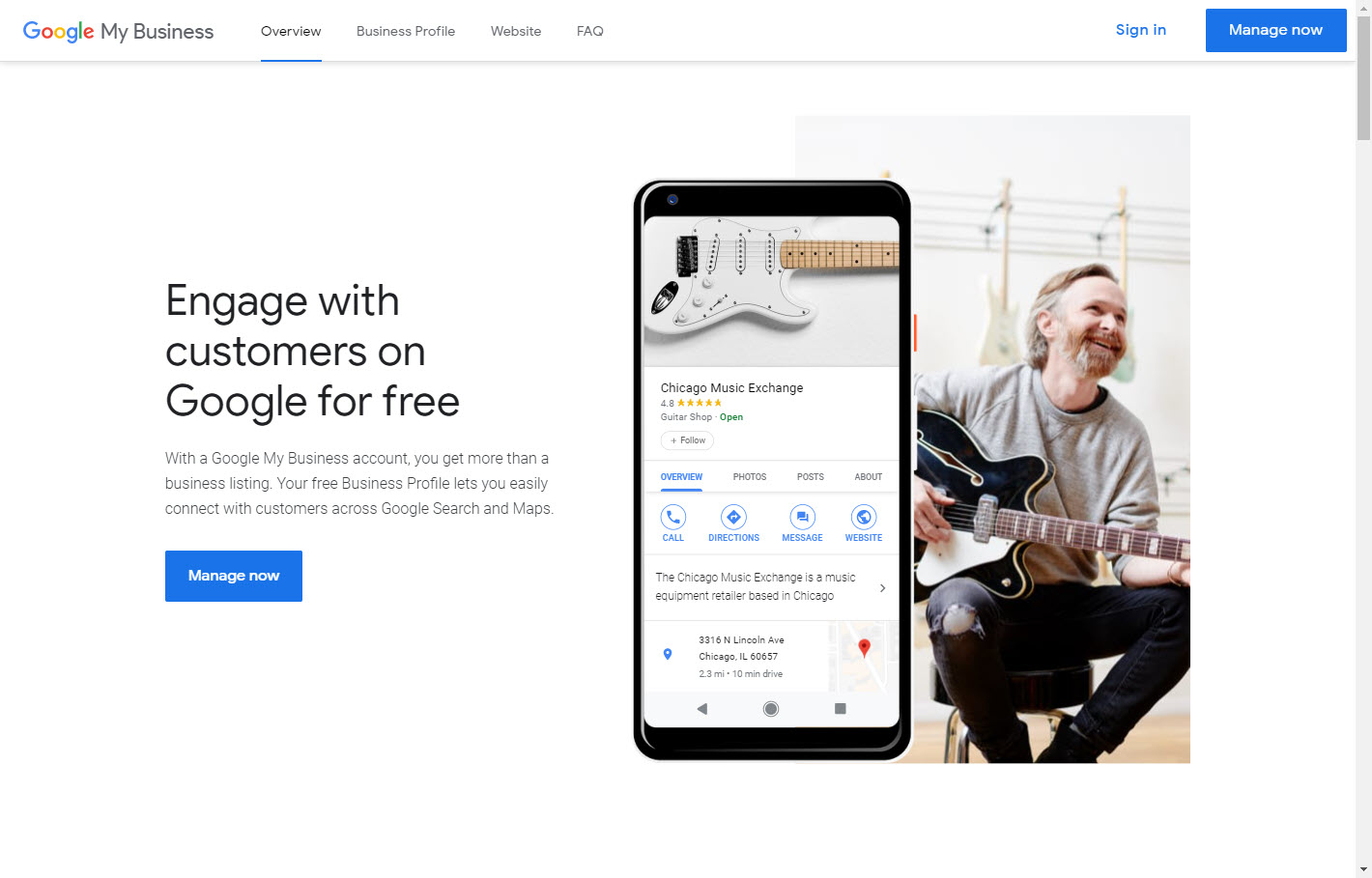
Why do I need a Google Business Profile for my dispensary?
Setting up and managing your dispensary's Google Business Profile will help customers find you, tell your story, provide social proof through reviews, share hours of operation and location, and verify your business.
But most important, a complete Google Business Profile will help your dispensary search engine optimization. This makes it easier for new customers to find you.
Google prioritizes near me searches
Because Google continues to prioritize “near me” searches, an accurate and up to date Google Business Profile listing is one of the best opportunities for your dispensary to be discovered. It also feeds the data that AI Overviews and answer engines use when someone asks an assistant to recommend a nearby dispensary, so an incomplete or stale profile now costs you visibility in two places at once.
Let's look at some common searches:
Example dispensary Google searches
- Dispensary [city name]
- Dispensary near me
- Recreational marijuana dispensary [city name]
- Weed delivery [city name]
Example Google Maps searches for dispensaries
- Medical cannabis dispensary
- Medical marijuana dispensary
- Name of dispensary
In both cases, we want Google to return results of dispensaries closest to our location. That's where Google Business Profile helps.
Are there restrictions for Google Business Profile dispensary listings?
Yes, unfortunately, there are significant restrictions for cannabis dispensaries and CBD stores on Google Business Profile.
When you complete your dispensary's Google Business Profile, you'll need to select a category, and you'll need to set it to “Cannabis store.” Because marijuana is not a federally legal drug in the United States, Google restricts certain aspects of the profile for this category. Your dispensary also needs a genuine storefront location. Google generally will not maintain a cannabis listing set up as a service-area business with no physical address.
And, while it might be tempting to categorize your business as something other than “Cannabis store,” you'll only get yourself into more trouble. In other words, play by the rules. The same goes for your business name: only use your real, registered business name. Adding extra keywords like your city or “dispensary” to the name field, when that is not your actual legal or DBA name, is a common way dispensary profiles get suspended.
List of dispensary restrictions for Google Business Profile
Google has historically limited businesses in the “cannabis store” category by disabling:
- Posts, direct communication with your customers.
- Products, listings of your products.
- Services, listings of your services.
- Bookings, the ability for customers to book time with you.
Unfortunately this means that in most cases you cannot include product or pricing details from your dispensary directly on your profile. Google adjusts which features are available to the cannabis store category without much notice and enforcement is not always consistent from one profile to the next, so check which tabs actually appear in your own dashboard rather than assuming this list never changes.
Populate your dispensary's Google Business Profile
Start with the Info tab. This is where you set all the basic information about your dispensary:
- Dispensary name
- Business category
- Business description
- Address
- Service area
- Hours of operation
- Phone
- Website
There are more options, and some that are unavailable to the cannabis store category. Complete as much as possible with as much detail as possible. When you write your business description, skip medical claims, pricing, discounts, and anything that reads like a sales pitch. Google now offers an AI-assisted description tool in some regions, which can be a helpful starting draft, but review anything it generates for compliance before you save it.
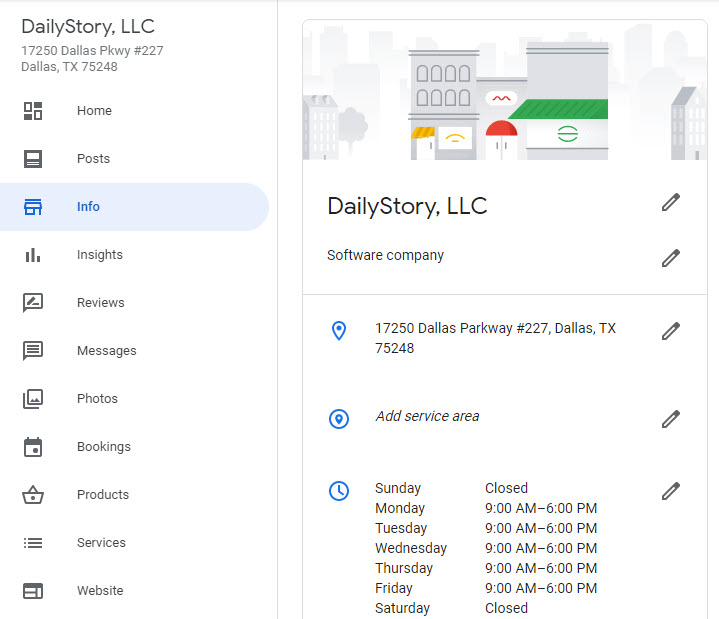
It's important to include as much information as possible. Take the time to complete an accurate profile of your dispensary.
Use “Cannabis store” for your dispensary business category in Google Business Profile
While multiple business categories can be set, if you are a marijuana dispensary, you must choose “Cannabis store” as your primary category.
Unfortunately there is not another realistic option in the category list for dispensaries. Selecting a primary category other than “Cannabis store” only increases the likelihood of getting your account suspended. And, once suspended, getting it unsuspended is not easy.
Use related secondary categories
You should include secondary categories for your dispensary. For example, you may want to include “Vitamin & supplements store” or “Delivery service” if those genuinely describe part of your business.
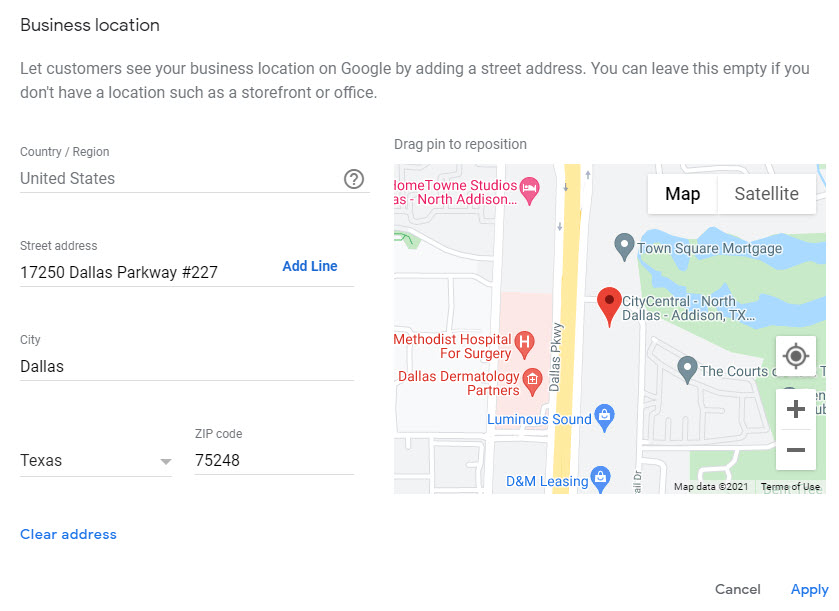
Ensure your marijuana dispensary's pin is correct on Google Maps
When you set your dispensary's address, ensure that the pin Google displays on the map is accurate. You can drag the map and zoom in. Once you are satisfied that your dispensary's location is accurate, click apply.
Include photos and videos of your dispensary
It's important to include photos and video of your dispensary. The photos are shown next to some search elements, such as with Google Maps.
These photos help customers and prospective customers understand your brand, and also give them visual cues they can use when looking for your store.
Photos to include
Take photos of the exterior of the store so people can see what it looks like. Next, include photos of the interior of the store. Even consider taking some photos of the staff. Keep a steady stream of new, original photos coming, since a profile with photos that have not been updated in months can look abandoned next to an active competitor.
Photos you should not include
Don't include photos of any product or usage of any product. Similarly, don't include pricing or other details. Anything related to the use or sale of marijuana should be avoided.
Skip photo geotagging, it does not help your ranking
You may have read advice recommending you add GPS coordinates to your photos' metadata before uploading them, on the theory that it helps Google understand your location. This is a widely repeated myth. Google strips this metadata when photos are uploaded, and independent tests from local SEO researchers have found no ranking benefit, and occasionally a small negative effect. Skip it, and put that time into uploading more real, recent photos instead.
Add attributes about your dispensary
Attributes are a feature in Google Business Profile that enables informative tags on your profile. The tags can help it stand out.
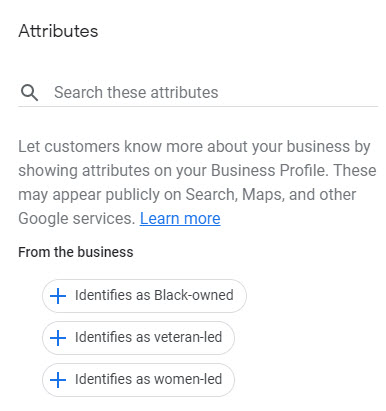
In addition to accessibility and payment attributes, consider “In-store shopping” and “Curbside pickup” for your dispensary, along with any identity attributes that genuinely apply, such as women-led or veteran-led, where Google supports them.
Your Google Business Profile also drives the local 3-pack
The three map results shown above the organic listings for a “dispensary near me” search are known as the local 3-pack, and a complete, accurate, actively maintained Google Business Profile is the biggest lever you have for earning one of those three spots. See our guide on the Google Maps Local 3-Pack and our 12 ways to optimize your Google Business Profile for tactics that apply to any local business, dispensary or otherwise.
Encourage reviews on your dispensary's Google Business Profile
One of the most important aspects of Google Business Profile is the ability to collect customer reviews. These reviews act as “social proof” to back up claims about your business, and they are one of the local ranking signals you can most directly influence.
According to BrightLocal's 2026 Local Consumer Review Survey, 97 percent of consumers say reviews guide their purchase decisions, and 31 percent will now only consider a business with 4.5 stars or higher, up sharply from 17 percent the year before. Recency matters too: a large share of consumers specifically look for reviews written within the last few months, so a review strategy needs to be ongoing rather than a one-time push.
Ask for reviews in-store when someone is checking out, or send an automated request by SMS or email a day or two after their visit. Send the same request to every customer rather than only following up with the ones you expect to leave a positive review.
What Google no longer allows when you ask for reviews
Google's review policies have tightened significantly, and enforcement is now largely automated. As of Google's 2026 policy updates, the following are explicit violations that can get reviews removed or your profile restricted:
- Offering any incentive for a review, including a discount, free product, or loyalty points, even if the incentive is offered for revising or removing a negative review.
- Review gating: screening customers by how satisfied they seem and only sending your review link to the ones likely to leave a positive review.
- Pressuring a customer to leave a review while they are still in your store, including handing them a tablet or shared device at checkout.
- Directing staff to hit a specific number of reviews, or asking customers to mention a staff member by name.
What is still fine is simply asking every customer, equally and without conditions, to share their honest experience, then letting them write whatever they want. A neutral request by text or email after the visit, or a QR code at checkout that a customer scans on their own, both work well and stay compliant.
Respond to your reviews, both positive and negative
When someone takes the time to leave a review, you should take the time to respond. Thank the reviewer whether the review is positive or negative, and if it is negative, ask for more details or offer a way to follow up. Keep your responses professional and privacy conscious: do not confirm what a specific customer purchased or how they use cannabis, and never make a medical claim in a reply, even when a customer's review invites one.
Once your dispensary's Google Business Profile is in good shape, connect the traffic and leads it generates to the rest of your marketing. See our guides on dispensary SEO, dispensary social media marketing, and dispensary email marketing. DailyStory helps you turn that traffic into loyal customers with connected email and SMS campaigns. Explore DailyStory's full feature set or schedule a free demo to see how it works.