Use email preview text to improve email open rates

Email preview text is one of the most underused optimizations in email marketing. Most senders spend significant time on subject lines and email design, then leave the preview text as an afterthought or skip it entirely. That is a measurable mistake.
Preview text influences open decisions for over a third of subscribers, and when combined with a strong subject line, it is the single highest-leverage inbox optimization available with no design cost and no additional send expense. A well-written preheader takes three minutes to write and pays dividends across every email you send.
The email preview text, or email preheader, is a preview of an email in your inbox. It enables you to quickly scan your inbox and take the next step: open the email.
What you may not know is that you can set this text using an email preheader, and that doing so is one of the most impactful decisions you can make before sending.
Before you optimize your email's inbox preview, make sure you read these tips to get your email to the inbox.
If you are not setting a preheader, you are leaving an important email optimization on the table:
- Preview text is often the first thing subscribers read after the subject line when deciding whether to open an email.
- Roughly 70 percent of email opens happen on mobile devices, where screen real estate is scarce and the preheader is often visible inline next to the subject line.
- Apple Mail is now 45 to 65 percent of email opens globally. Its Mail Privacy Protection feature has made traditional open-rate tracking unreliable, which makes subject-plus-preheader the clearest signal of a campaign's real inbox appeal.
You should use every part of your email to control your brand, and the preheader is one of the most visible parts you are probably ignoring.
Before we explain how to set the email preview text, let's clarify exactly what it is.
Modern reality: Apple Mail Privacy Protection
Any current article on email open rates has to start here. In September 2021, Apple launched Mail Privacy Protection (MPP) in iOS 15 and macOS Monterey. MPP pre-fetches every image in every email, including the invisible tracking pixel that email service providers use to count opens. The result: every email delivered to an Apple Mail user registers as opened, whether the recipient ever saw it or not.
MPP is now four years in and enabled by the vast majority of Apple Mail users. With Apple Mail accounting for roughly 45 to 65 percent of total email opens (depending on audience), this has fundamentally distorted the open rate as a metric. Campaigns that used to sit at 28 percent open rates now routinely report 50 percent or more, not because anything changed in the creative but because machines are pre-opening the mail.
So why does preview text still matter if open rates are unreliable? Three reasons:
- Clicks, replies, and conversions are still real. A compelling subject-plus-preheader combination drives actual engagement, which is what you care about. Preview text influences the human decision to open, read, and click, all of which remain trackable. See our guide on the click-to-open rate for how to measure real content engagement in a post-MPP world.
- Non-Apple opens are still measurable. Gmail, Outlook, Yahoo, and webmail opens are mostly uninflated. Your preview text directly affects the open rate on that meaningful slice of your list.
- Brand presence in the inbox. Every scroll past your subject line is a brand impression. Bad preheaders such as "View this email as a webpage" waste that impression. Good preheaders reinforce your message even when the email is never opened.
The short version: open rate as a KPI is increasingly a vanity metric. Preview text optimization has shifted from "lift the open rate" to "win the actual click." The tactics below still apply, just measure success differently. For more context on which email metrics matter most in 2026, see our guide on how to measure the success of your email marketing campaign.
What is email preview text?
The email preview text, also known as the email preheader, is the text displayed by an email client to preview the contents of an email.
This text displays to the right of the subject in Gmail and below the subject in both Microsoft Outlook and the Apple iOS Mail app.
Below is an example from Gmail highlighting the various parts of an email in the inbox:

How email clients preview your email content
Email clients set the preview text automatically from the first lines of your email, unless you set it yourself. The number of characters shown varies dramatically by client and device (more on that below), but essentially all modern clients will display something next to or below your subject line.
The technical explanation of where the email preview comes from
The preview text is the first non-HTML text found in the beginning of the text/HTML section of an email's multi-part MIME (Multipurpose Internet Mail Extensions) body.
While the email body may contain both plain text and HTML versions of the email content, the preview text comes from the HTML version.
With a little bit of HTML and CSS, you can control the preheader code directly.
Set the preview text yourself
Instead of letting the email client choose which text to display, set it proactively. Use the email preheader HTML to highlight your content or call to action.
There are two ways to control it. Let's start with the easiest.
Use visible text to set the email preheader
The first option is the easiest: include a short line of visible content at the top of your email body. This technique is a direct descendant of the Johnson Box, a summary block pioneered by direct-response copywriter Frank Johnson to put the key message of a letter front and center before the reader decided to read further.
Here is an example of several emails with their preview highlighted:

Looking at the first email in the example, the preview text of the email is set by the content at the top of the email:
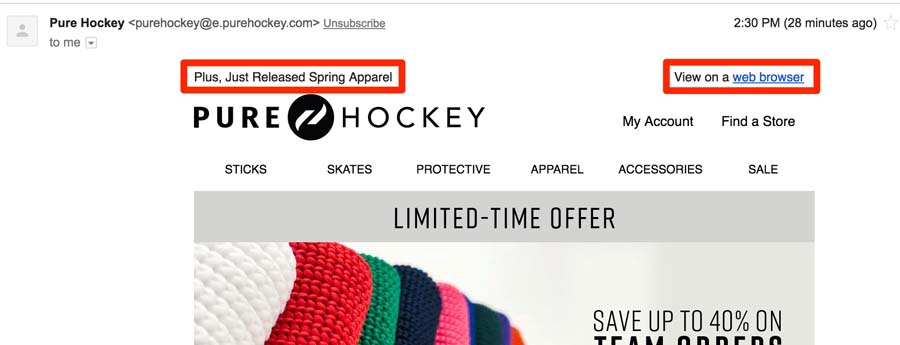
This type of preheader is common, and you will see it often now that you know what it is. But you can see how the text "View on a web browser" leaked into the email preview text. Not exactly ideal.
A challenge with setting a visible preheader is that the amount of text shown by the email client is variable. The length of preview text shown depends on the screen size, device, and the email client itself.
This is a problem because the design and layout of your email will not allow you to set several sentences of visible text at the top.
While you cannot control how much text will be shown in your preview, you can control what text is shown by using a hidden email preheader.
Use hidden text to set the email preheader
Let's look at an example email to help illustrate how a hidden text email preheader works:
As you can see, there is no visible text at the top of the email. Instead, the email is heavy with HTML and images. But clearly, Gmail is able to find the right text to display:

So how does Gmail know which text to show in the email preview? If you dig through the text/HTML section of the original email, you will find this code near the top:

This is known as a hidden email preheader. Hiding text using HTML and CSS requires a few tricks. We recommend the following HTML and inline CSS:
The class name preheader is incidental and not required unless you are also setting global styles that target it. The stack of overlapping hide rules is intentional: different email clients respect different properties, and some ignore others entirely. The mso-hide:all rule specifically covers Microsoft Outlook, which ignores display:none.
If you are sending email using DailyStory, the email preheader is easily set when drafting or editing an email, with no manual HTML required.
Now that you know how to control the preview text, let's talk about writing an effective preheader.
Write good copy for your preview
A good preheader makes your email stand out in the inbox, or at the very least clearly communicates the purpose of the email.
The Toyota tire sales event above is a great example. The combined subject plus preheader text reads as a single statement:
Rob, The Tire Savings Event is Here. Buy 3 Tires, Get the 4th for $1. Visit during the Month of April for this Great Deal.
This message is personalized, has a clear value proposition, and has a clear call to action. All before the email is even opened.
The rule of thumb: write the preheader as a continuation of the subject, not a repetition of it. If the subject sets up the hook, the preheader delivers the substance. Short, specific, and concrete always beats long, vague, and promotional.
Personalization in the preheader works the same way it does in the subject line. Using the recipient's first name or referencing something specific to their account or behavior consistently lifts engagement. Pair a personalized preheader with a personalized subject line and you have covered the two most visible inbox elements before the email is even opened.
A good test: read your subject and preheader out loud as a single sentence. Does it sound like something a person would say? Does it make the next step obvious? If yes, you are done.
For guidance on the subject line side of the equation, see our article on 12 tips for email subject lines that won't get ignored and our guide to A/B testing email subject lines.
What happens when you skip the preheader
Here is what you are leaving on the table when you do not set a preheader. Below is a screenshot of an email sent daily by the Wall Street Journal, a perfect example of where a hidden preheader would clean up a messy inbox appearance:
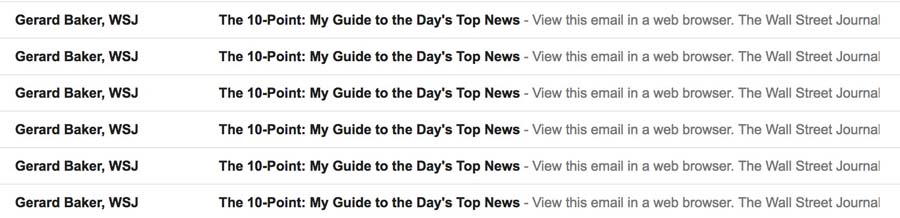
The preview text is clearly being built off of the first text in the email.
Setting a hidden preheader like this would make the email far more compelling at a glance:

By setting the preheader proactively, you get a much more useful view of the email in the inbox. That improved inbox view is the difference between a recipient who scrolls past and one who opens.
Character limits per email client
You cannot control how much of your preheader text each client will display, but you can and should know the approximate limits. Aim for your most important words in the first 40 to 50 characters. Anything past that is a bonus for clients that show more.
| Client | Desktop | Mobile |
|---|---|---|
| Gmail | ~90 to 119 characters | ~40 to 90 characters |
| Apple Mail | Up to 140 characters | Up to 90 characters |
| Outlook | ~35 to 55 characters | ~35 to 55 characters |
| Yahoo Mail | ~90 to 120 characters | ~40 to 80 characters |
Practical guidance: write 80 to 130 characters of preheader copy, put the hook and value proposition in the first 40 to 50 characters, and treat the rest as optional expansion that some clients will show and some will not. Writing longer than 140 characters is wasted effort: no major client displays more than that.
If you want to avoid body copy leaking into the preview when your hidden preheader is short, pad the end with non-breaking spaces or zero-width joiners:
The padding pushes body copy out of the preview window. How many padding characters you need depends on the client. Gmail handles non-breaking spaces differently than Apple Mail, for example, so test with your actual audience.
Emojis, special characters, and dark mode gotchas
A few modern tactical notes that did not exist when the original version of this guide was written:
Emojis in preheaders
Emojis in the preheader (and subject line) are now standard practice. They visually break up the inbox, draw the eye, and add tone in a single character. Use them sparingly: one, maybe two, and test across clients, because rendering varies. Outlook desktop in particular can render some emojis as monochrome glyphs or miss them entirely.
Lead with the emoji only if it adds meaning. Leading with "🔥 Flash Sale" reads fine. Leading with a random smile face in front of a business email reads as noise.
Dark mode rendering
Most modern email clients offer dark mode, and most automatically invert certain colors to keep content readable. This occasionally creates problems with hidden preheaders: if you use color:#FFFFFF to hide preheader text on a white background, some dark-mode clients invert it to black on black (still hidden), but others show it as white on a dark background, suddenly visible. The CSS recipe above avoids this by hiding via display:none, visibility:hidden, max-height:0, and opacity:0 instead of relying on color, so it stays hidden regardless of background.
Special characters and symbols
Symbols like arrows (→), checkmarks (✓), stars (★), and vertical bars (|) can help chunk long preheaders into scannable pieces: "New arrivals in stock | Free shipping on orders over $50 | Shop now →". Use HTML entities or Unicode characters directly. Both work reliably in modern clients.
Frequently Asked Questions
Does preview text still matter with Apple Mail Privacy Protection?
Yes. MPP inflates the open-rate metric, but it does not change what humans see in their inbox. Compelling preheader text still drives clicks, replies, and real engagement, and still matters on the 35 to 55 percent of email opens that happen outside Apple Mail. The shift is in how you measure success: judge preheaders by click-through and reply rate, not open rate. See our guide on the click-to-open rate for the right metric to use.
What is the ideal email preview text length?
Aim for 80 to 130 characters total, with the most important message in the first 40 to 50 characters. Outlook cuts off around 35 to 55 characters, Gmail mobile around 40 to 90, and Apple Mail up to 140. Writing more than 140 characters is wasted: no major client displays more.
Does preview text affect email deliverability?
Not directly. Preview text has no impact on whether your email reaches the inbox or spam folder. However, a clear preheader reduces the chance a recipient will mark your email as spam after opening it, which indirectly protects your sender reputation over time.
Should I use emojis in my preview text?
Yes, in moderation. One emoji that adds meaning (a flame for urgency, a checkmark for confirmation) tends to outperform a plain-text preheader in inbox scanning. Avoid emoji stacking and test in Outlook desktop, which sometimes renders emoji inconsistently.
Why does my preheader show "View in browser" or "Unsubscribe"?
This happens when you have not set a hidden preheader, so the email client pulls text from the first visible content in your email body. "View in browser" and similar utility links are usually the first lines in HTML email templates. Set a hidden preheader (see the CSS example above) and this problem goes away.
Can I personalize preview text the same way I personalize subject lines?
Yes, and you should. Most email marketing platforms support merge tags and personalization tokens in the preheader field, the same way they work in subject lines. Adding a recipient's first name or referencing their account, location, or purchase history in the preheader consistently lifts real engagement. Check your platform's documentation for the correct token syntax. In DailyStory, personalization tokens in the preheader field work identically to those in the subject line.
In summary
Preview text is one of the highest-leverage, lowest-effort email optimizations you can make. A tight checklist:
- Always set a hidden preheader. Do not let the email client pick your preview text.
- Write it as a continuation of the subject line, not a repetition. Subject hooks, preheader delivers.
- Put the most important message in the first 40 to 50 characters. Outlook cuts off there. Everything after is bonus.
- Write 80 to 130 characters total, never more than 140.
- Measure success by clicks and replies, not the MPP-inflated open rate. Track your click-to-open rate as your primary engagement signal.
- Use emojis sparingly, test dark mode, and do not rely on color alone to hide the preheader.
- Personalize when possible. A preheader with the recipient's name or a relevant detail outperforms a generic one every time.
Preview text optimization works alongside every other inbox optimization you make. Combine it with a strong subject line, a recognizable from name (see our article on no-reply email addresses for why this matters), and consistent list hygiene, and you have covered the foundations of inbox performance.